I started building Arduino backed robot per instructions in http://blog.miguelgrinberg.com/post/building-an-arduino-robot-part-ii-programming-the-arduino and quickly discovered pain of editing the sketches in Arduino IDE. The pain forced me to release C++ plugin 0.8.6 for IntelliJ Idea 13.1, new version is functionally identical to previous version except supports newer version of IntelliJ Idea.
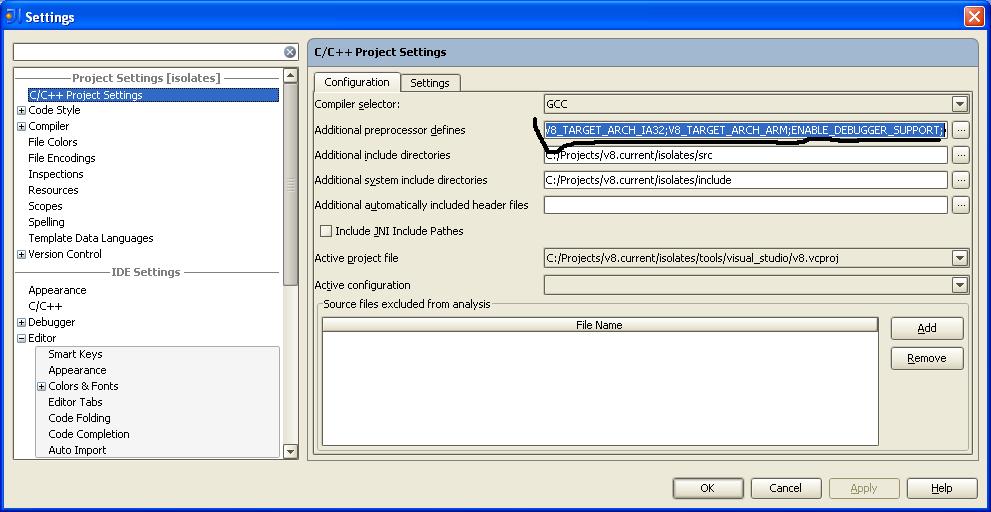
To edit sketches one needs to specify extra include paths from Arduino Ide installation (e.g. %arduinoidepath%/Resources/Java/hardware/arduino/cores/arduino , %arduinoidepath%/Resources/Java/libraries/SoftwareSerial) and add "ino" extension mapped to c/c++ file type. Another needed configuration setting for resolving Arduino built-in symbols (like Serial) is specifying custom file in Additionally automatically included header file of C/C++ project settings. The file (e.g. ArduinoSetup.h) should have following content for auto adding Arduino specific symbols declarations in every file:
Once one finishes with sketch editing one can use Arduino IDE to upload the sketch to the device.
To edit sketches one needs to specify extra include paths from Arduino Ide installation (e.g. %arduinoidepath%/Resources/Java/hardware/arduino/cores/arduino , %arduinoidepath%/Resources/Java/libraries/SoftwareSerial) and add "ino" extension mapped to c/c++ file type. Another needed configuration setting for resolving Arduino built-in symbols (like Serial) is specifying custom file in Additionally automatically included header file of C/C++ project settings. The file (e.g. ArduinoSetup.h) should have following content for auto adding Arduino specific symbols declarations in every file:
#define UBRRH
#include "Platform.h" // Arduino symbols declarations Once one finishes with sketch editing one can use Arduino IDE to upload the sketch to the device.